How to Build a Multi-Workspace Slack Application in Go
Learn to create a multi-workspace Slack application using Go. This guide covers setting up, coding, and distributing your app across multiple Slack workspaces.
David Abramov
Published
May 31, 2022
•
Updated
September 24, 2024
•
10
min read
Share this post
Recently, I started working on a Slack application that connects Slack and our own Blink platform. If you’re not familiar, Blink is a no-code automation platform for cloud engineering teams, and it enables users to build automations within managed workspaces for different teams or projects. In order to support this use case, I needed a way to build a multi-workspace application in Slack.
When I started reading about and playing with the Slack platform, it suddenly became clear to me that Slack is so much bigger and more complex than I’d ever realized.
The Slack API Docs seem very large and complex at first glance, but they are actually quite detailed and user-friendly. Unfortunately, the official Bolt family of SDKs doesn’t include Go, my recent language of choice, and, although I did find some useful guides on the web, none of them really targeted my use case of building an app which can be distributed across multiple workspaces and eventually listed on the Slack app store, the App Directory.
After my research, I ended up using the Slack API in Go to build the needed Slack application, and I’m writing this hands-on article to share my experience. While I built this application to support Blink’s particular use case, I’ve written the rest of this blog post as a general how-to guide for anyone building a similar Slack application.
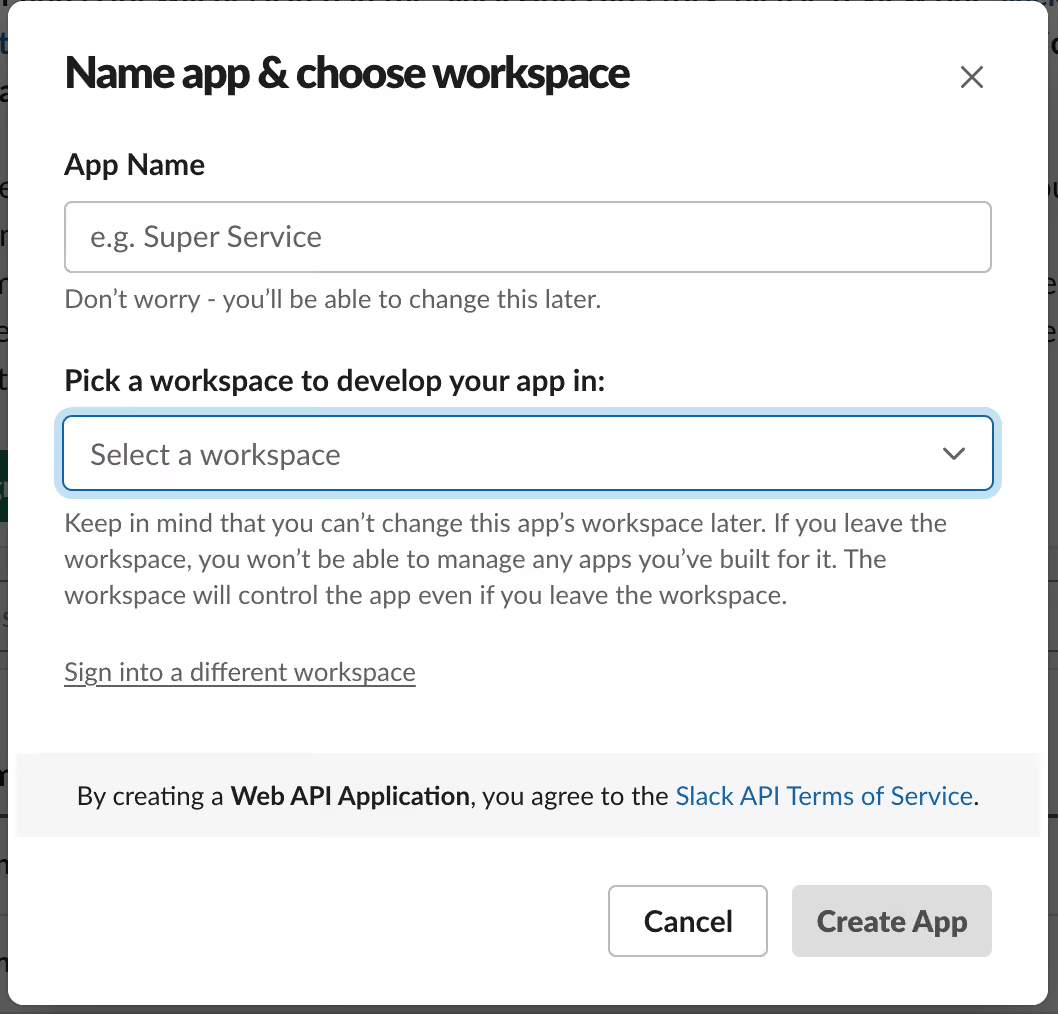
Give your app a name and select the workspace you will be developing your app in.
NOTE: As our app will be publicly distributed, the workspace selection here is not very important, and we’ll build our app in a way which will allows us to install it on any workspace, regardless of the choice you make in this phase.
The Scenario
Let’s imagine that you are developing a really awesome REST application that accepts as input 2 integers and returns their sum.
package main

import (
	"encoding/json"
	"net/http"

	"github.com/gin-gonic/gin"
)

type Input struct {
	Num1 int `json:"num1"`
	Num2 int `json:"num2"`
}

type Output struct {
	Sum int `json:"sum"`
}

func handle(c *gin.Context) {
	input := &Input{}
	if err := json.NewDecoder(c.Request.Body).Decode(input); err != nil {
		c.String(http.StatusBadRequest, "error reading request body: %s", err.Error())
		return
	}
	c.JSON(http.StatusOK, &Output{
		Sum: input.Num1 + input.Num2,
	})
}

func main() {
	app := gin.Default()
	app.POST("/", handle)
	_ = app.Run()
}
By default, if we don’t specify an argument for the ‘Run’ method, the app will listen on port 8080.
Let’s try it:
go run main.go
And then:
curl -X POST http://localhost:8080 --data '{"num1":1,"num2":2}' -i
And here’s the result:
HTTP/1.1 200 OK
Content-Type: application/json; charset=utf-8
Date: Sat, 21 May 2022 17:46:26 GMT
Content-Length: 9

{"sum":3}
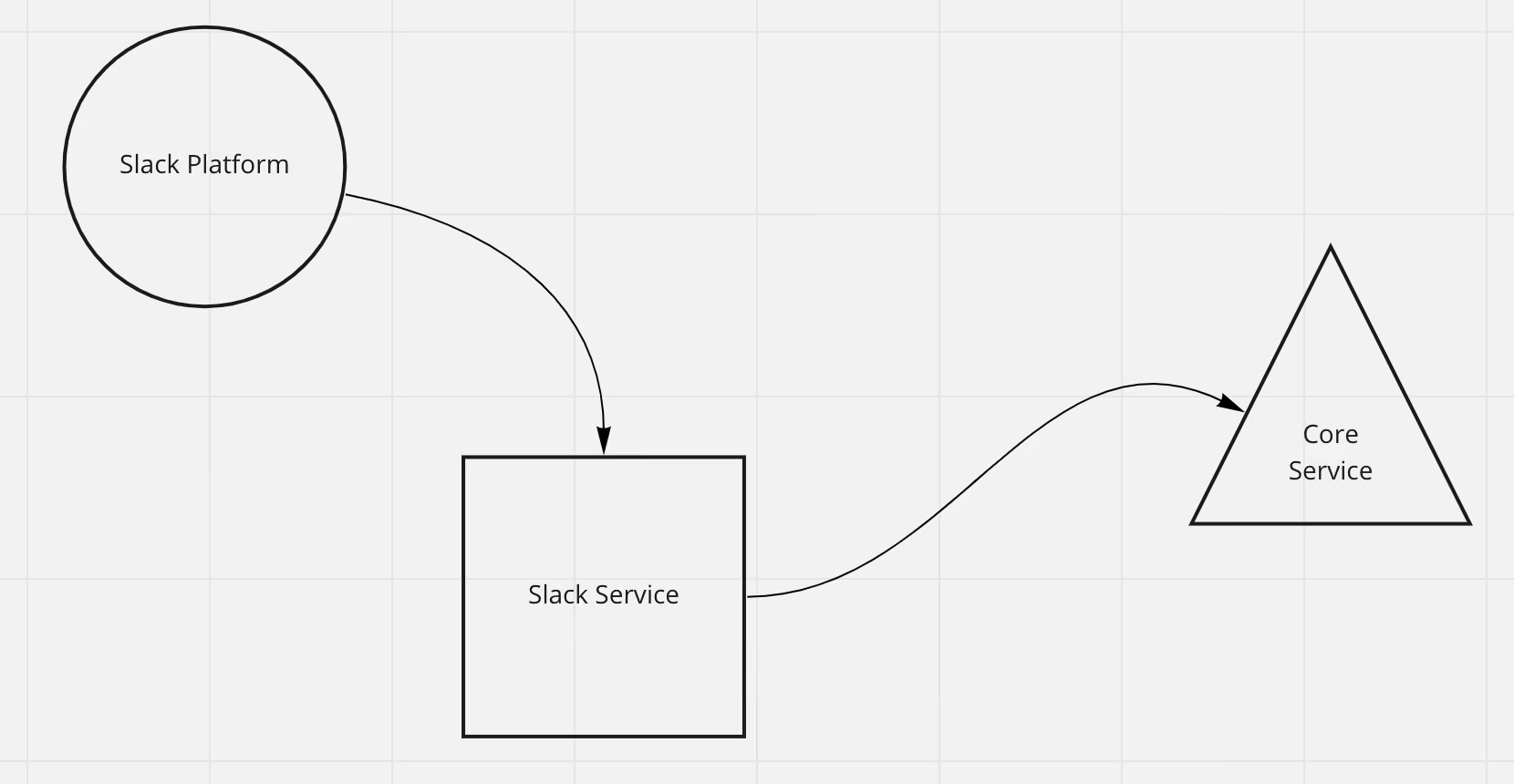
Let’s call this app our ‘Core’ service that we want to integrate with Slack, and create a standalone Slack dedicated service that will connect the users of our Slack app to the ‘Core’ app.
Let’s visualize this:
The above diagram shows the data flow. Each time a user will interact with our Slack app, the Slack platform will access our Slack service which will in turn access our ‘Core’ service to process the input and return a response which will be returned to the Slack platform (and then to the user).
Supporting Multiple Slack Workspaces
Every access to the Slack API requires the caller to provide an access token.
There are several types of tokens. Our app will work only with bot tokens.
Every time our app will be installed on some workspace, we’ll get such a bot token from the Slack platform.
The installation process on some workspace is actually an OAuth authorization flow, in which we send the user to Slack to authorize our app on his workspace, and once he approves our app, we’ll need to exchange our temporary access code for a permanent access token which we’ll use in every operation which requires access to the Slack API.
Let’s start with a small snippet of our Slack service code.
To store these tokens, we’ll use the popular and quite simple Bolt DB framework:
go get github.com/boltdb/bolt/...
Let’s initialize the DB and create a bucket of tokens, in which tokens are mapped to their workspaces (by ID):
NOTE: When developing a real app, consider storing your access tokens in a more secure way!
Developing Locally
As we’re developing locally and the Slack platform requires us to provide publicly accessible URLs, we need to create some connection between our local device and the wider network. For this we can use ngrok:
ngrok http 5400
Running the above command should print a URL which exposes port 5400 on your local device to the outer world.
Configuring Our App
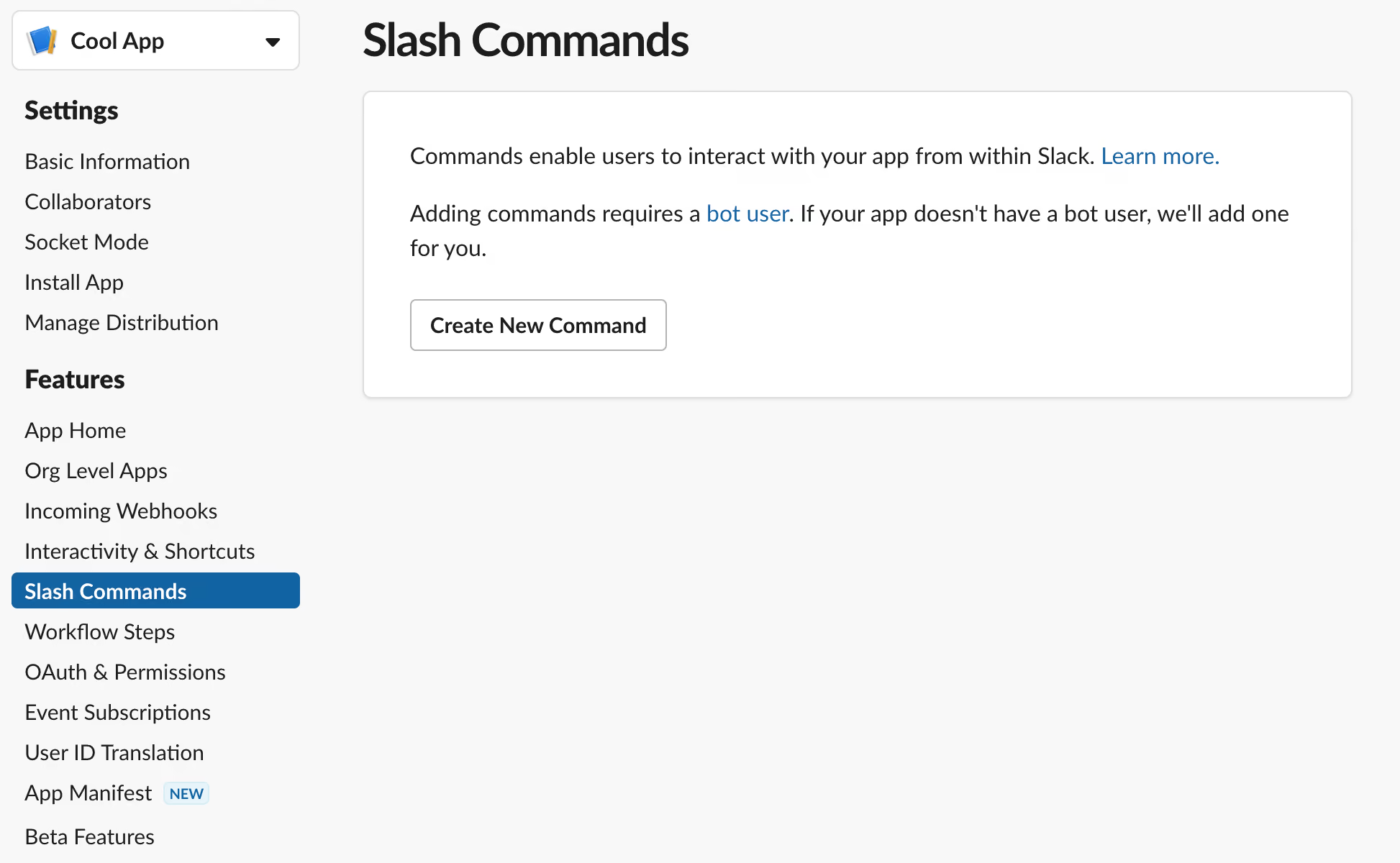
To keep things simple, we’ll register a Slash Command for our app:
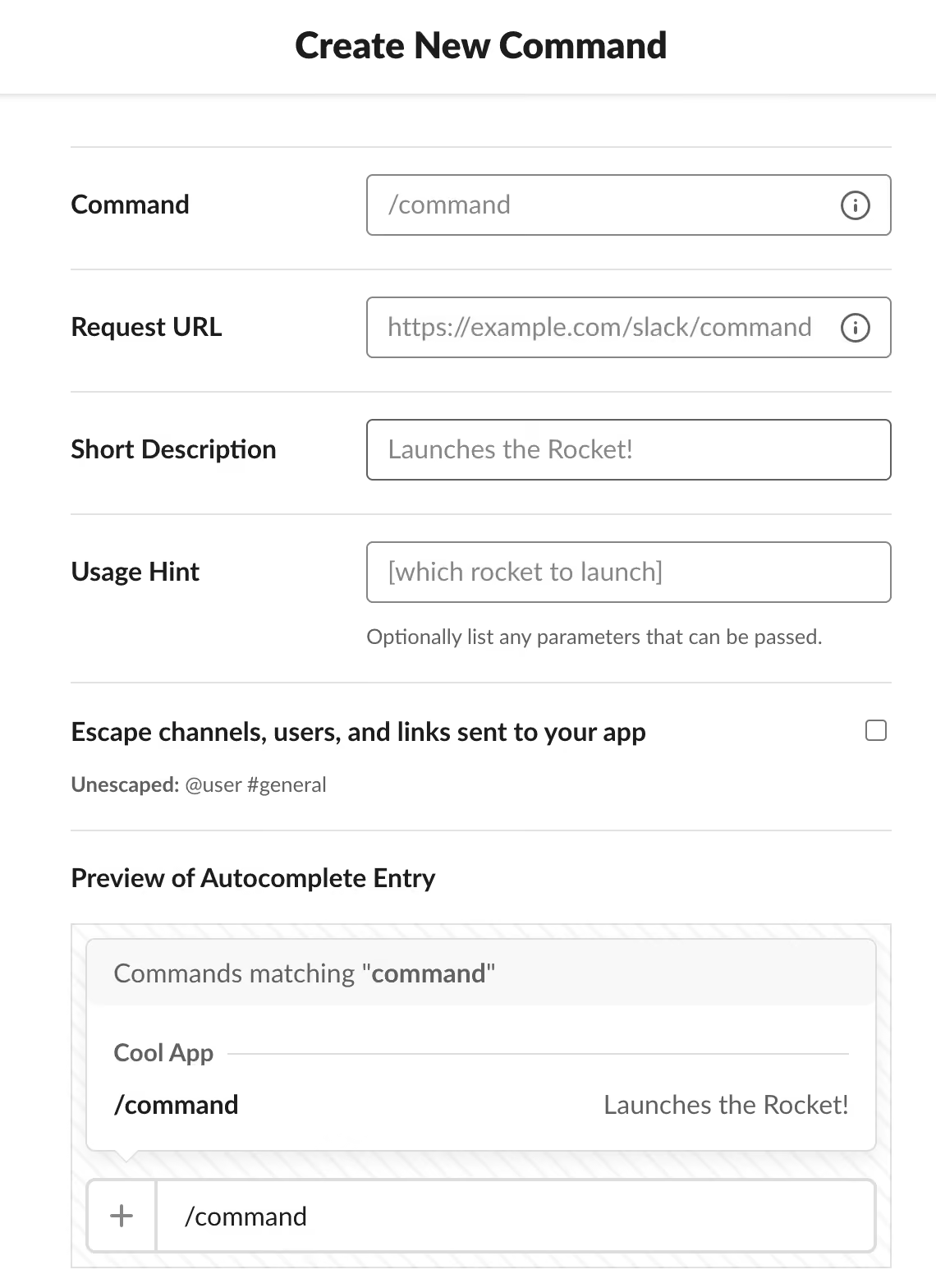
Navigate to Features → Slash Commands and click the ‘Create New Command’ button:
Fill out the following form:
Provide the name of the command (e.g. ‘plus’), the ngrok URL from the previous section suffixed with ‘/cmd/’ and the command name and a description (e.g. ‘Sum 2 Integers’). The rest of the fields are optional.
Setting Up App Installation
As we’re developing a multi workspace app, we need to enable the OAuth installation flow.
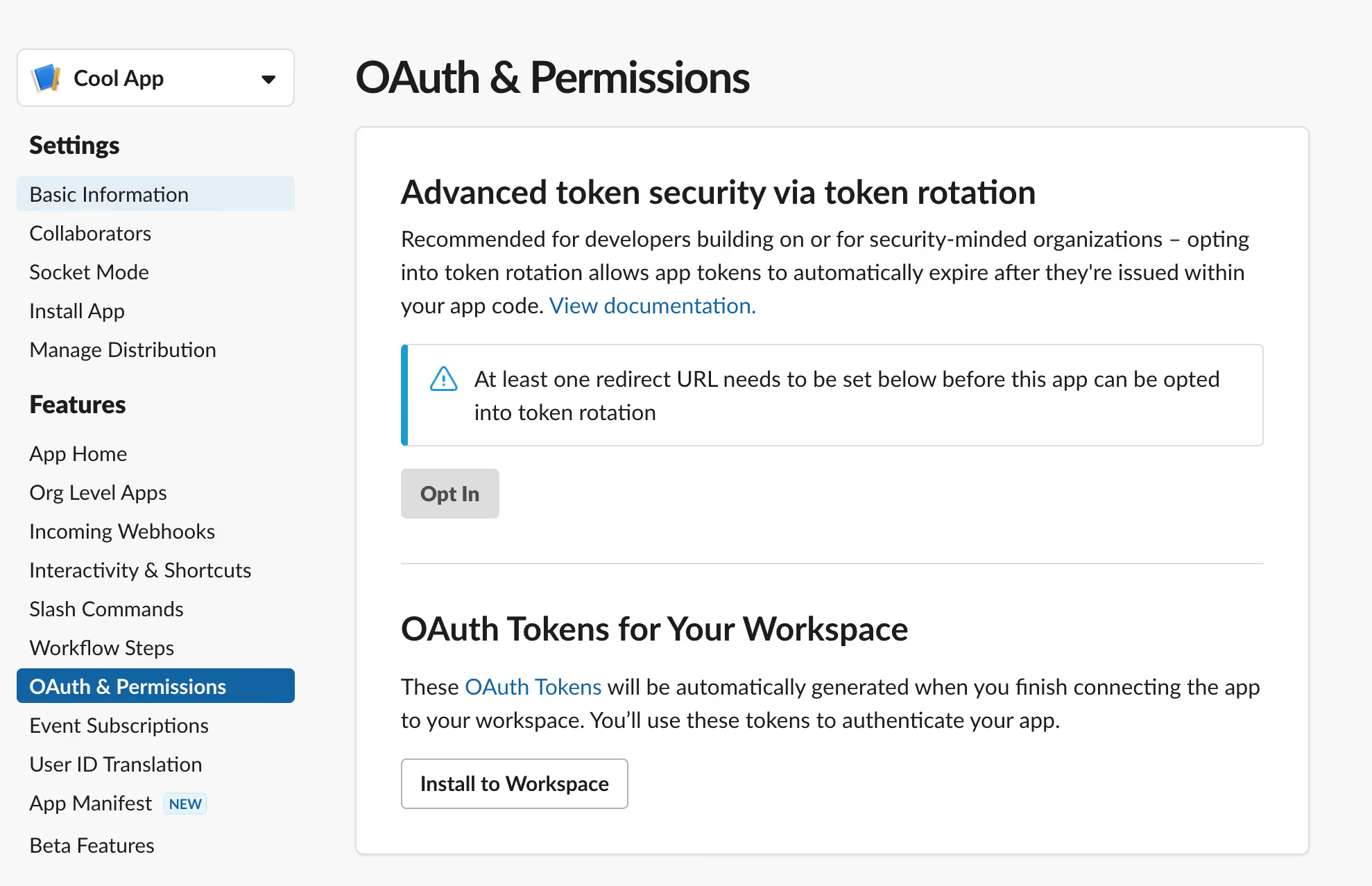
Navigate to Features → OAuth & Permissions:
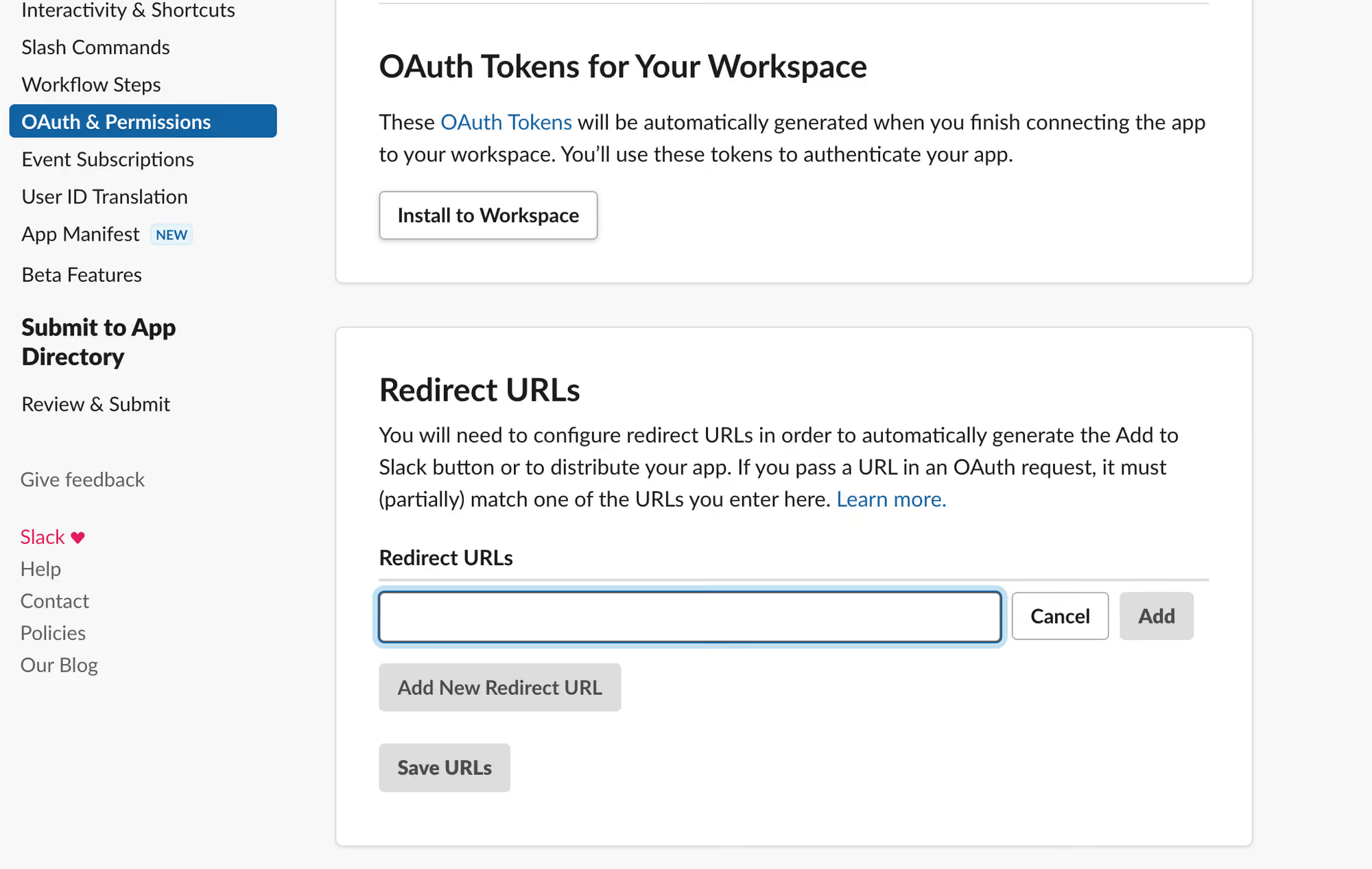
And click the ‘Add New Redirect URL’ button in the ‘Redirect URLs’ section:
Enter your ngrok URL with a ‘/install’ suffix attached to it (e.g. ‘https://03e2-109-66-212-180.ngrok.io/install’), click ‘Add’ and then click ‘Save URLs’.
Scopes
The scopes requested by our app are those that our app will request upon each installation to some workspace. You can see in the ‘Scopes’ section that we already have the ‘commands’ bot scope, as we’ve added a Slash Command to our app.
Enabling Public Distribution
Navigate to Settings → Manage Distribution:
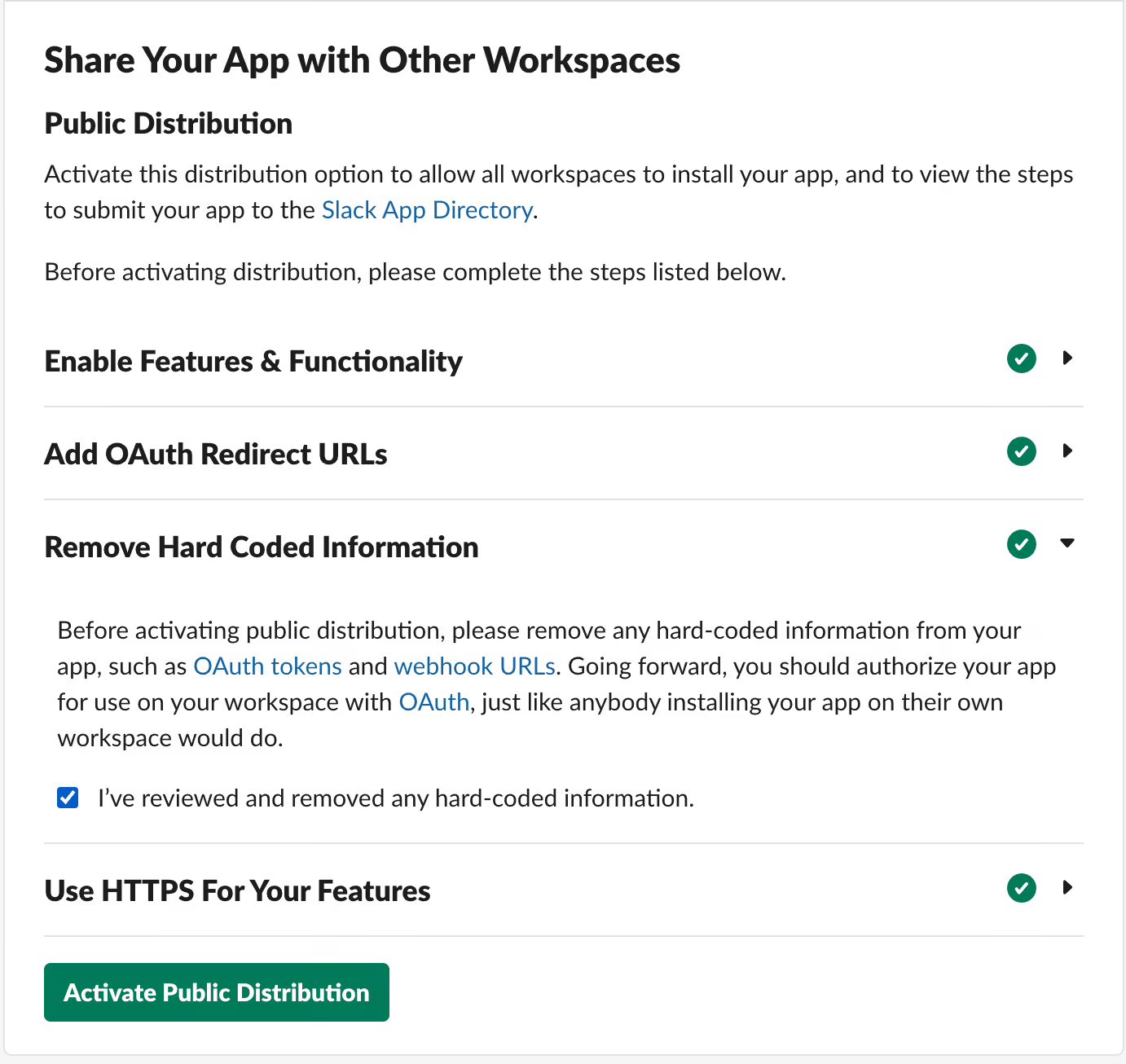
And under the ‘Share Your App with Other Workspaces’ section, make sure that the hard coded information removal checkbox is checked:
Finally, click the ‘Activate Public Distribution’ button.
Connecting It All Together
Now that we have our awesome ‘Core’ Service and we’ve configured our Slack app, we can go ahead and continue writing the code of our Slack service.
We’ve already configured our storage mechanism, and you’ve probably noticed that we are already committed to implementing some endpoints we shared with the slack platform:
/install - to install our app using the OAuth flow.
/cmd/plus - to forward the request to sum 2 integers to our ‘Core’ service, using the input from the user on Slack.
Implementing the OAuth Installation Flow
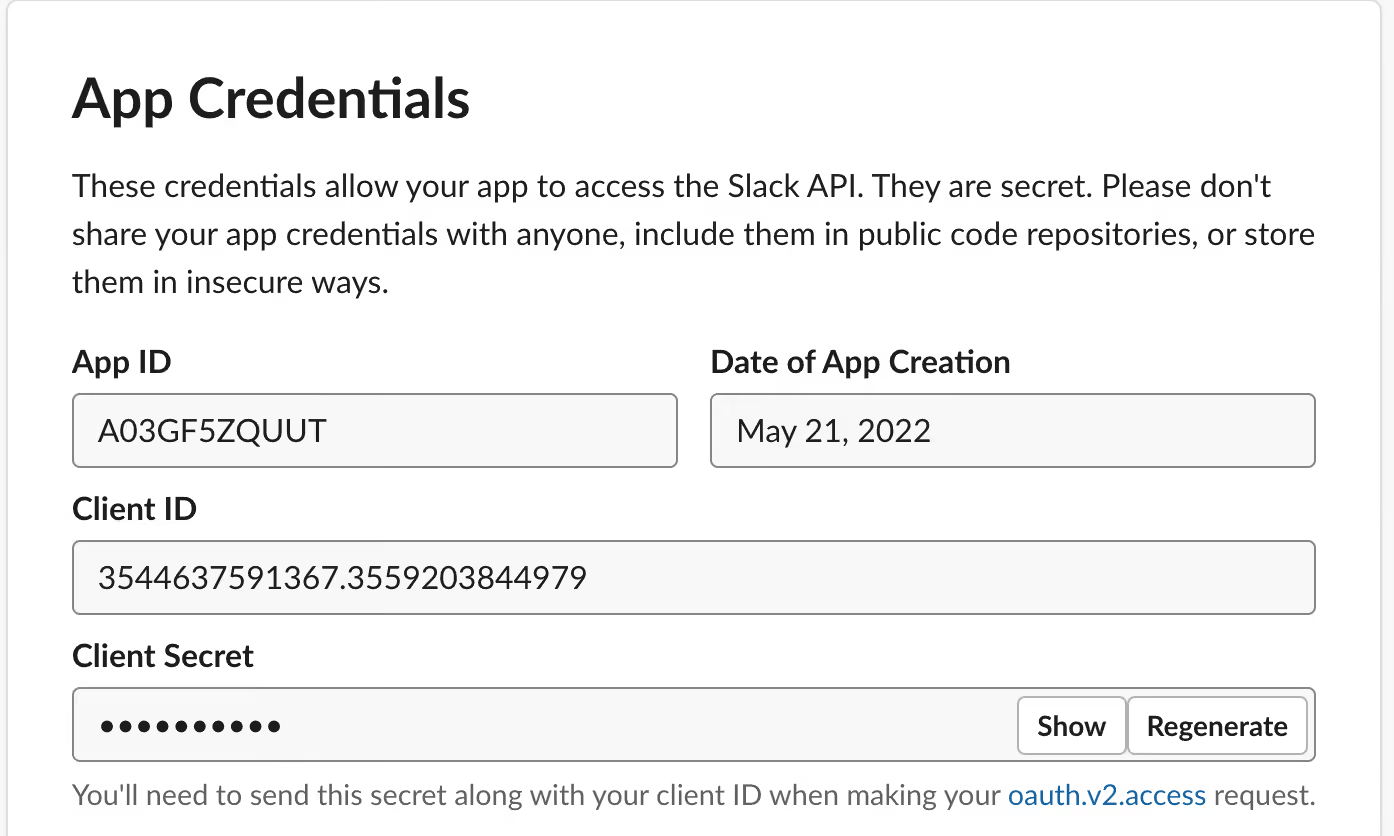
As with every standard OAuth flow, we need a pair of client ID and secret. You can view both under the ‘App Credentials’ section after navigating to Settings → Basic Information:
We need to access the Slack platform, so let’s import the Go SDK:
Let’s break it down. First, we check for the presence of the ‘error’ query parameter. If this parameter is present, then it means the installation failed for some reason (e.g. the user declined to authorize our app). In that case we’ll abort the rest of the flow and just notify of an error.
Next, as in every standard OAuth flow, we’re checking for the temporary code by looking for the ‘code’ query parameter, and if it is present we use the Slack Go SDK to exchange that code for an access token, and store that token in our storage, mapped to the workspace ID.Finally, we redirect the user to our app page in his Slack client using Deep linking.
Notice how we’re reading the ‘CLIENT_ID’ and ‘CLIENT_SECRET’ env variables to perform the exchange operation.
IMPORTANT: When developing a real app, consider adding a ‘state’ parameter to your OAuth flow for extra security!
Implementing the Slash Command
Before we implement our slash command endpoint, let’s implement some middleware that will make sure that requests to this endpoint are really coming from Slack.
There are several methods provided by the Slack platform to achieve such verification, but we’ll use the recommended and straightforward way of using the Signing Secret present under the ‘App Credentials’ section in Settings → Basic Information:
Here’s the signature verification middleware code:
First, we’re reading the signature verification secret from the ‘SIGNATURE_SECRET’ env variable.
Then, we’re reading the request body, while copying it and preserving it for later reads which may be invoked by other handlers in the chain, and finally we verify the signature of the request body. If all is well, we’re calling the ‘Next’ method to invoke any other handlers in the chain.
Let’s have a look at the code of the actual handler:
Let’s break it down. We’re parsing the request body to get the slash command input.
Then, we’re parsing the parameters passed in with the command to verify we have 2 integers (e.g. ‘/plus 1 2’ is valid, but ‘/plus 1 a’ is not).
Finally, we’re using the 2 provided parameters to invoke the endpoint on our ‘Core’ service to get the sum of the 2 given integers, sending the user a direct message with the calculated sum returned by the ‘Core’ service.
In order to send a direct message to the user we are reading the token mapped to the relevant workspace from the DB.
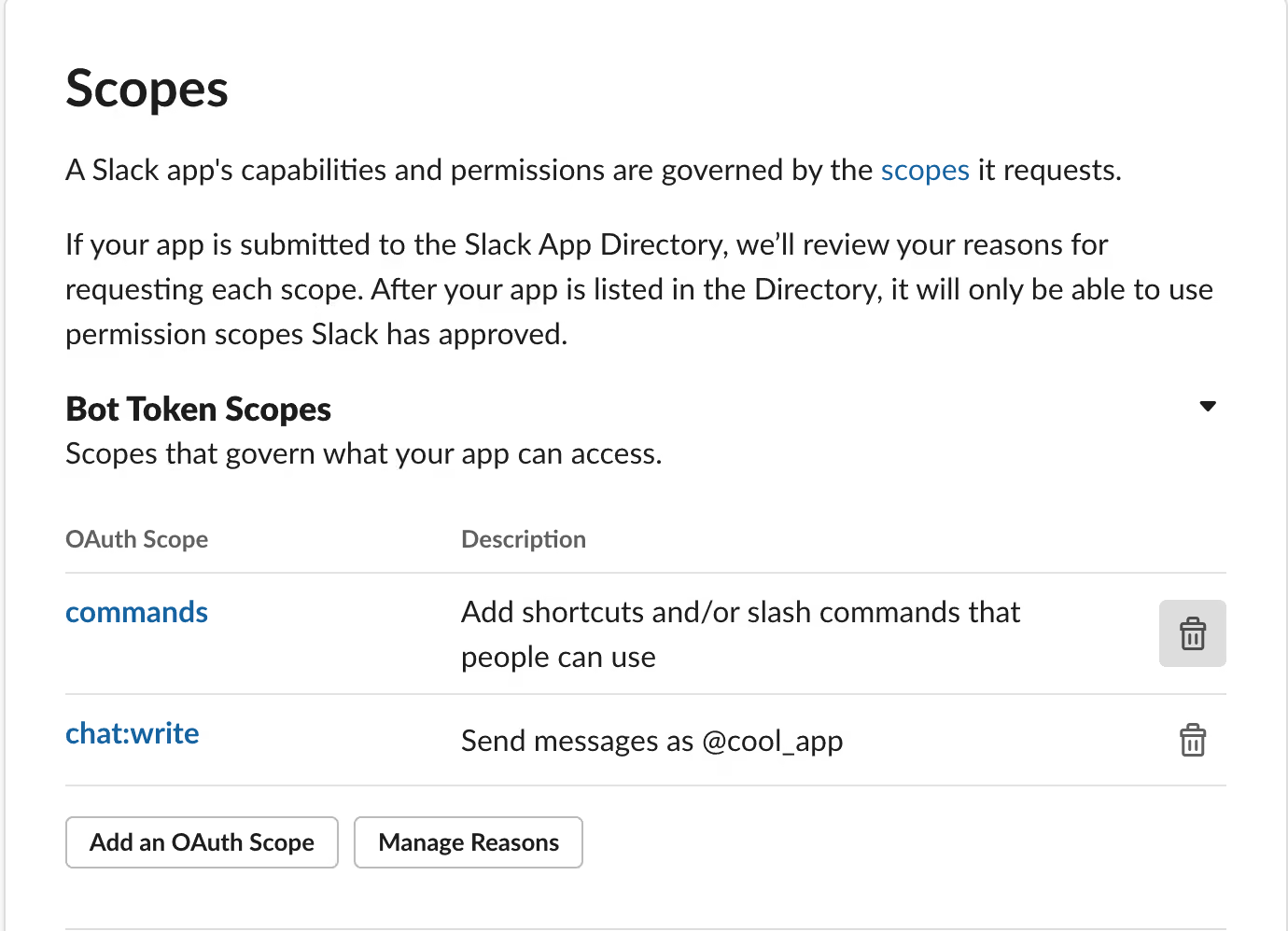
Also, we need to add the ‘chat:write’ bot scope for our app, otherwise our app will not be able to send direct messages to users.
Navigate to Settings → OAuth & Permissions, and under the ‘Scopes’ section add the required scope to the list of bot scopes required by your app:
Finally, let’s register our slash command handler under a new ‘cmd’ API group. Here’s the current code of our Slack service:
For convenience, we copied the definitions of the ‘Input’ and ‘Output’ structs from our ‘Core’ service.
Notice that when we’re sending the direct message to the user we’re using the access token of the workspace the user invoked the command from.
Playing With Our App
Run your app using the following command, providing values for the required env variables:
PORT=5400 CLIENT_ID=... CLIENT_SECRET=... SIGNATURE_SECRET=... go run main.go
The value of the ‘PORT’ variable is used by the gin framework if no argument is passed to the ‘Run’ method.
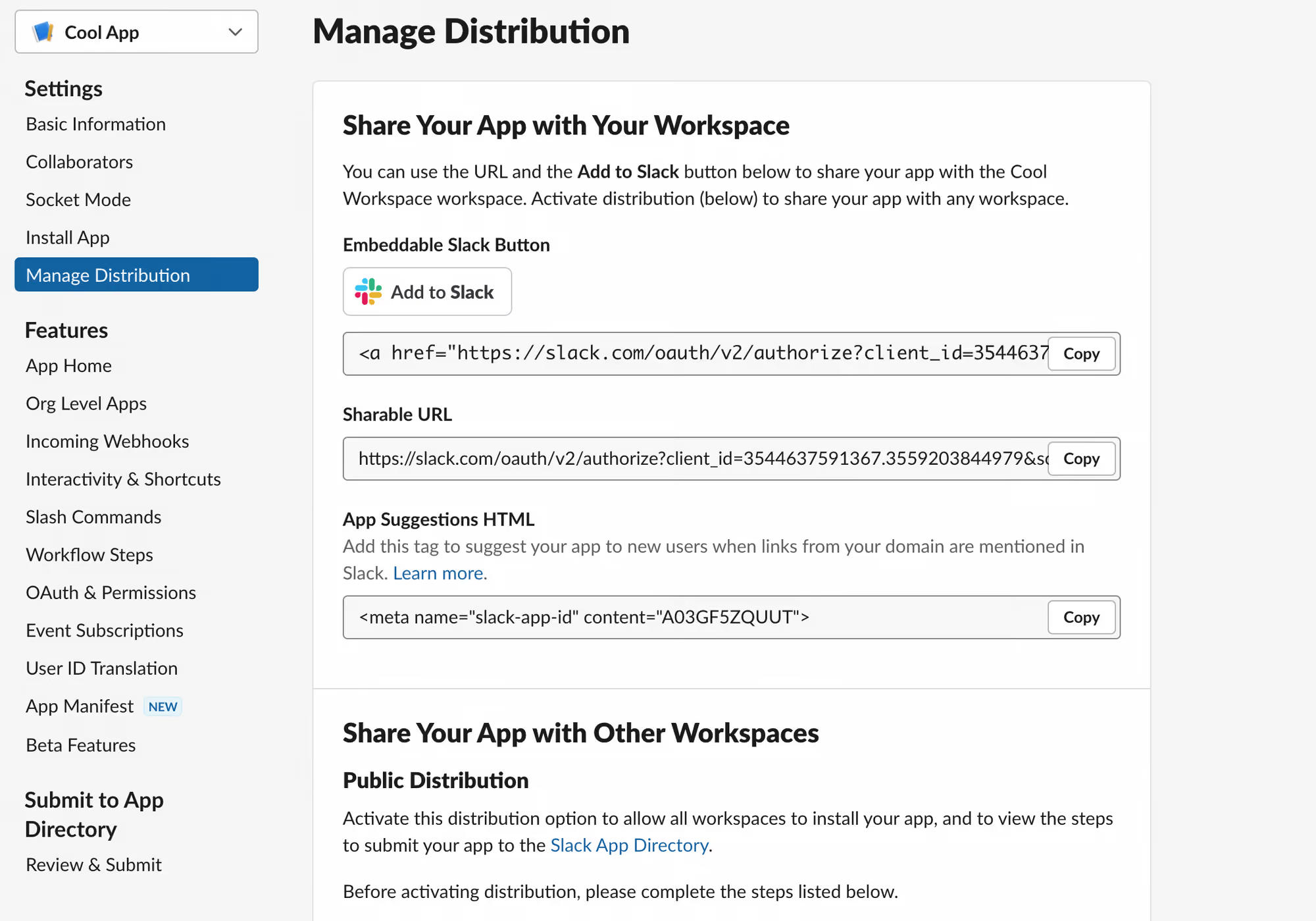
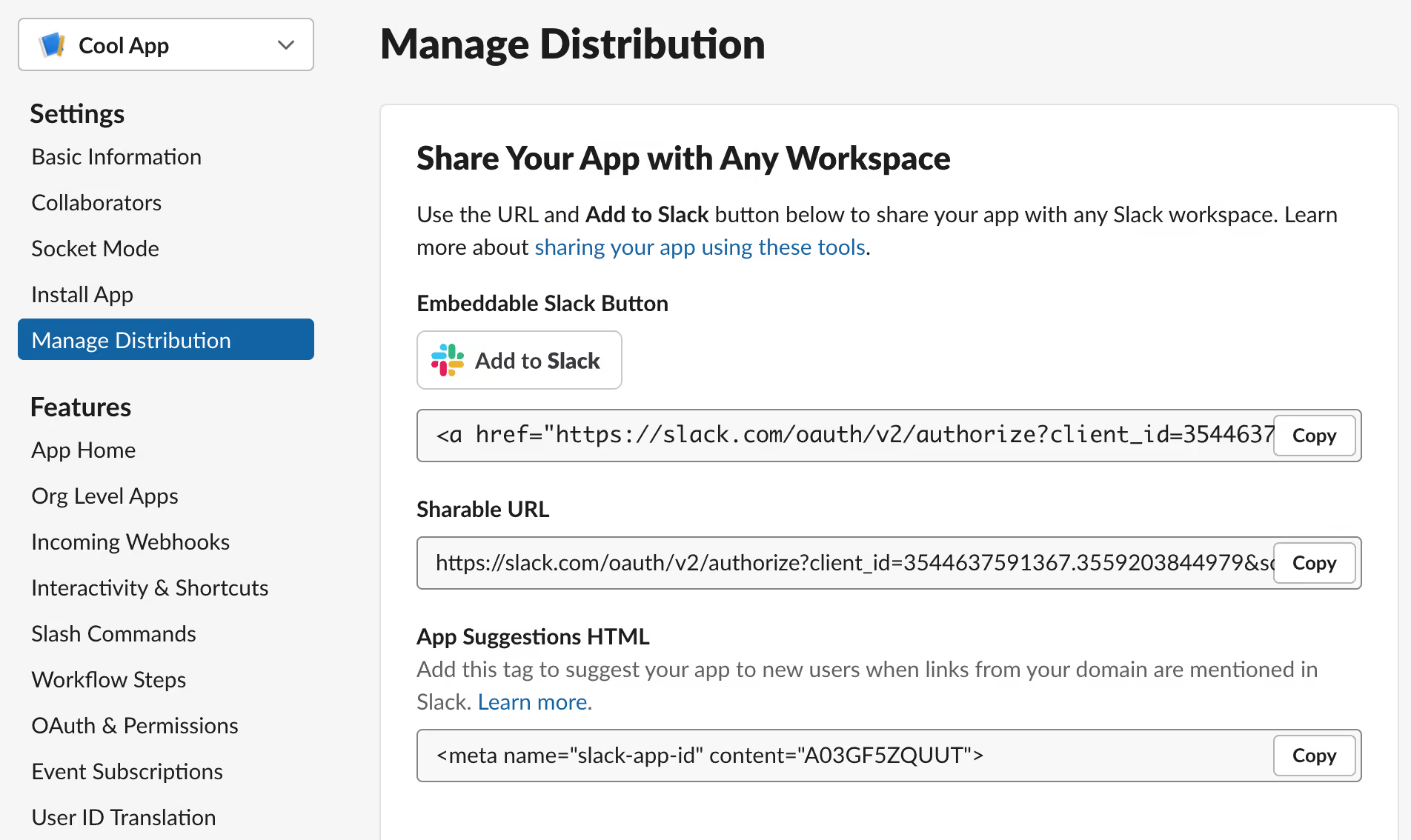
Let’s first install our app on some workspace. To do that, we need to initiate the OAuth installation flow. To do that, Navigate to Settings → Manage Distribution:
Press the ‘Copy’ button in the ‘Sharable URL’ section and paste the copied URL into a new tab in your browser.
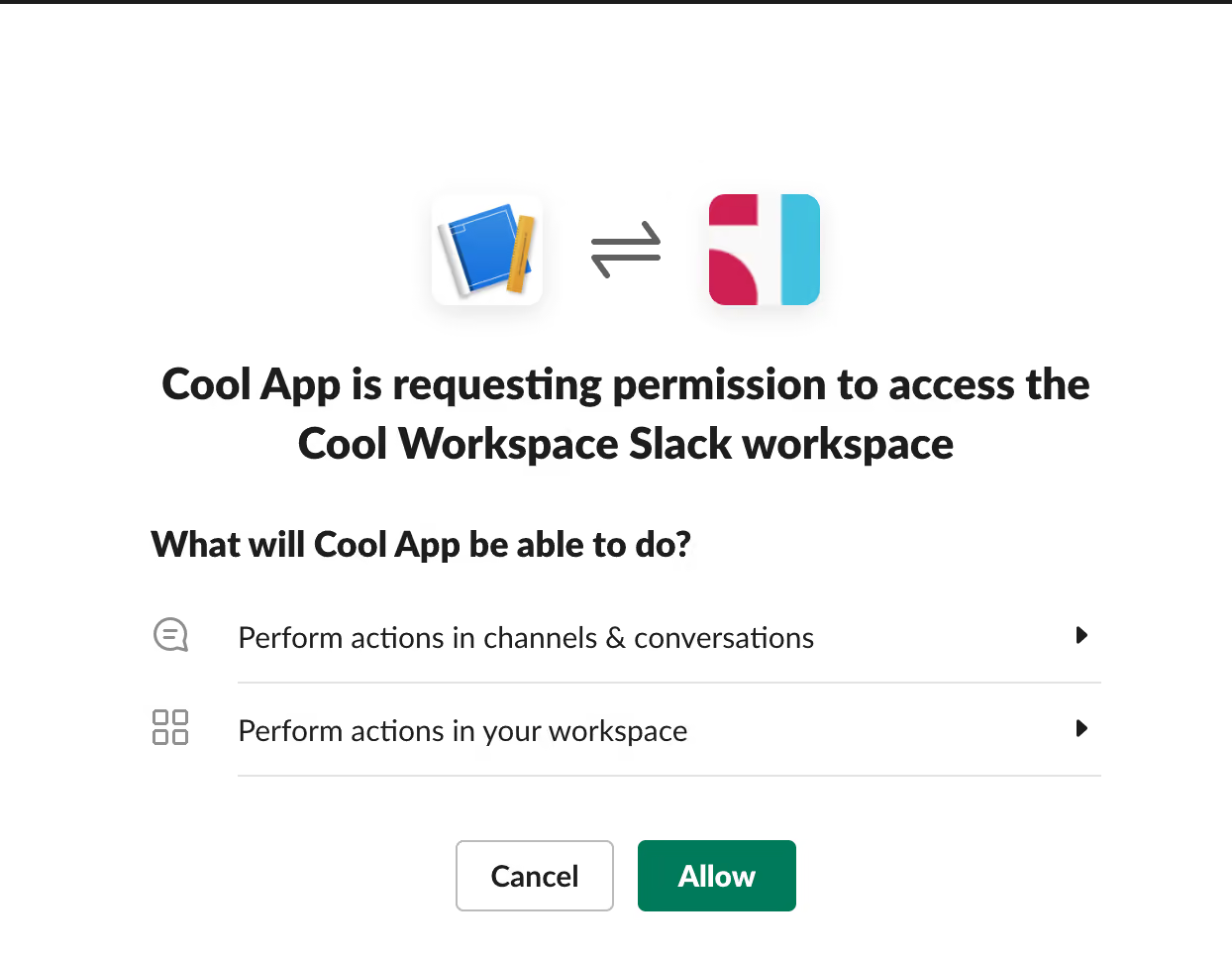
This should open a page which resembles the following page, allowing you to choose a workspace and install the app to it:
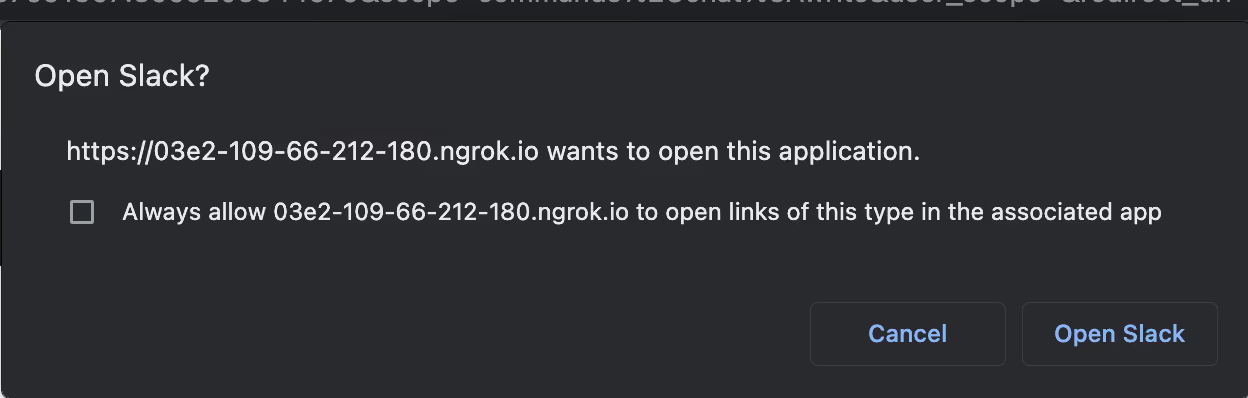
Press ‘Allow’ and in the following window:
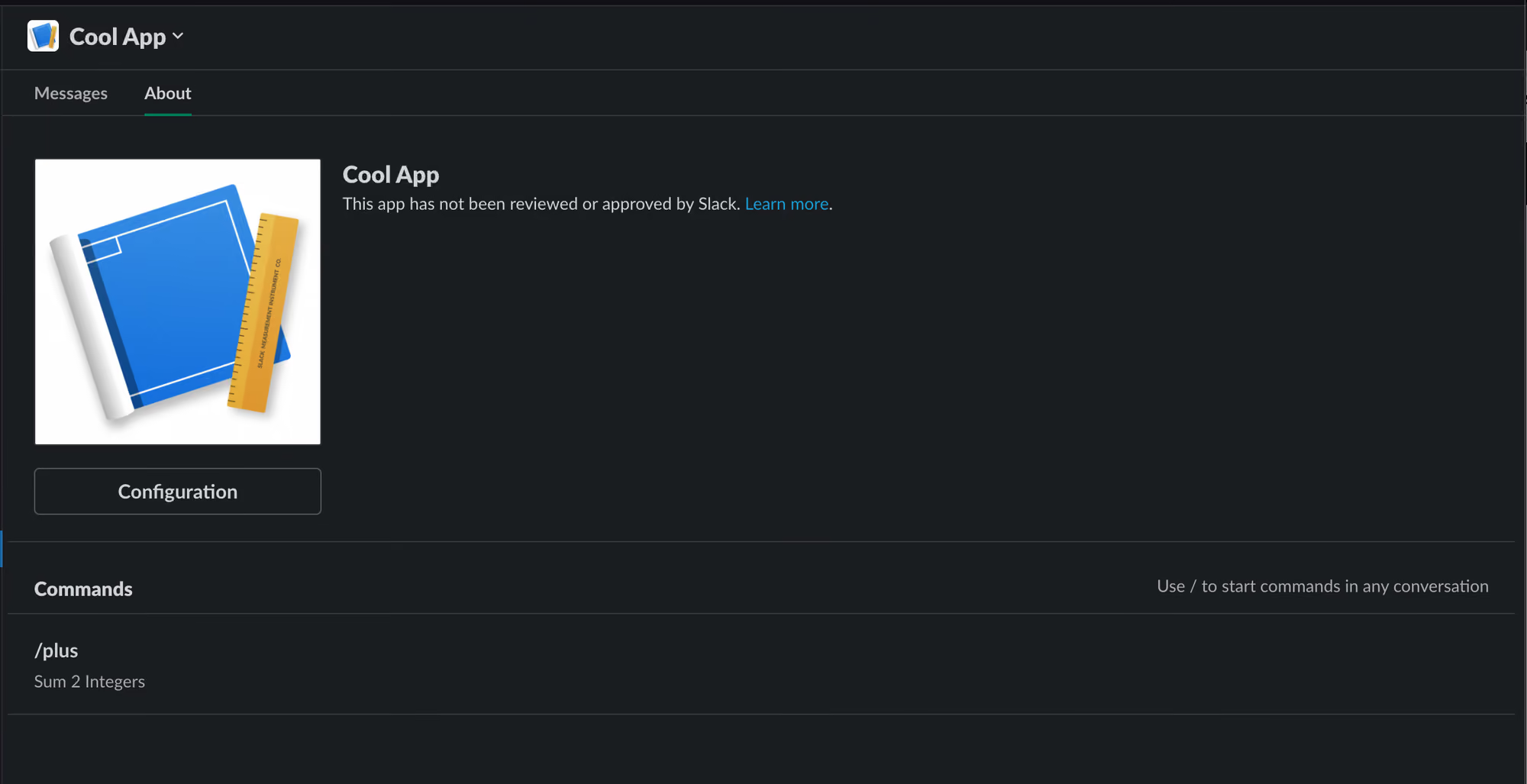
Press the ‘Open Slack’ button, which should take you to the ‘About’ page of your app in your Slack client:
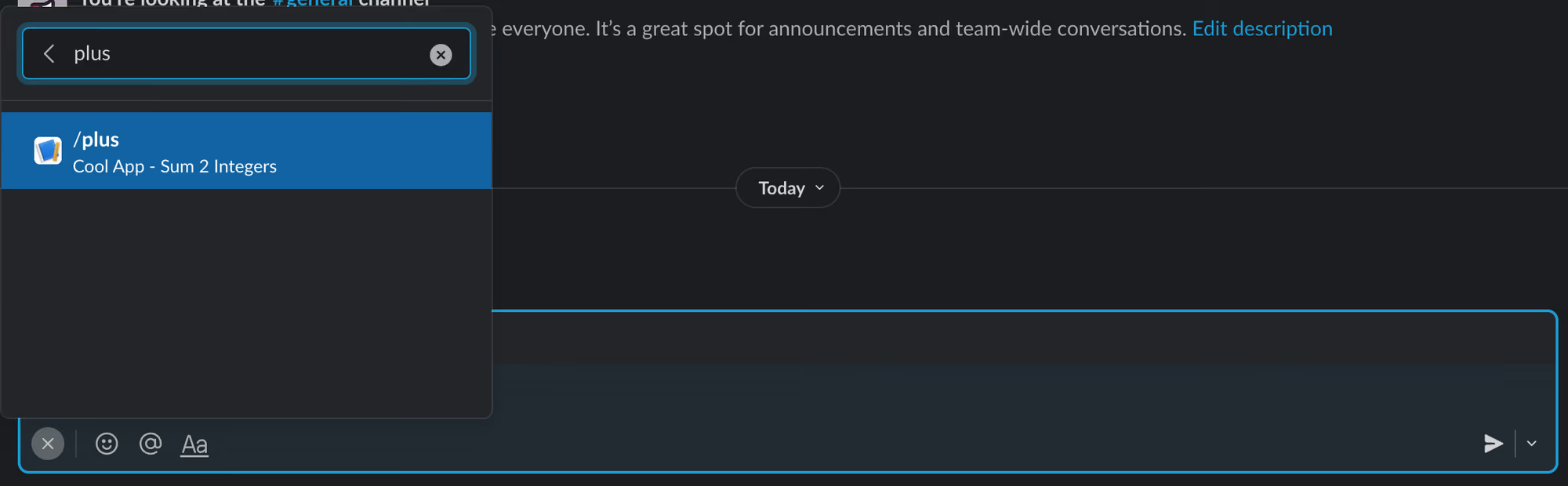
Now, navigate to some public channel in your workspace and type in ‘/plus’:
Press enter to choose the ‘/plus’ command of your app, suffix the ‘/plus’ command with 2 integers of your choice and send the message, e.g.:
Once you send the message, you should receive a direct message from your app, notifying you of the result:
Listening to Events
The Slack Events API is an integral part of any Slack application, especially those that are intended to be distributed across multiple workspaces.
There are 3 kinds of events:
URL Verification - The Slack platform sends a challenge string, and our app should respond with that string and with a 200 OK status code. In this way the Slack platform checks that our app is alive.
Rate Limiting - The Slack platform informs our app of some rate limit being reached on some API endpoint. We can just acknowledge this event with a 200 OK status code.
Callback - The ‘interesting’ events. These events have an inner event which can have various types.
Let’s register our app to a basic app deletion event.
Here’s our Slack service code, including our event handler:
When an event is sent, we check the type, and respond accordingly. The only callback event we’re going to handle is app uninstallation. We handle it by deleting the access token we used to access the Slack platform when we needed to interact with the workspace the app was deleted from.
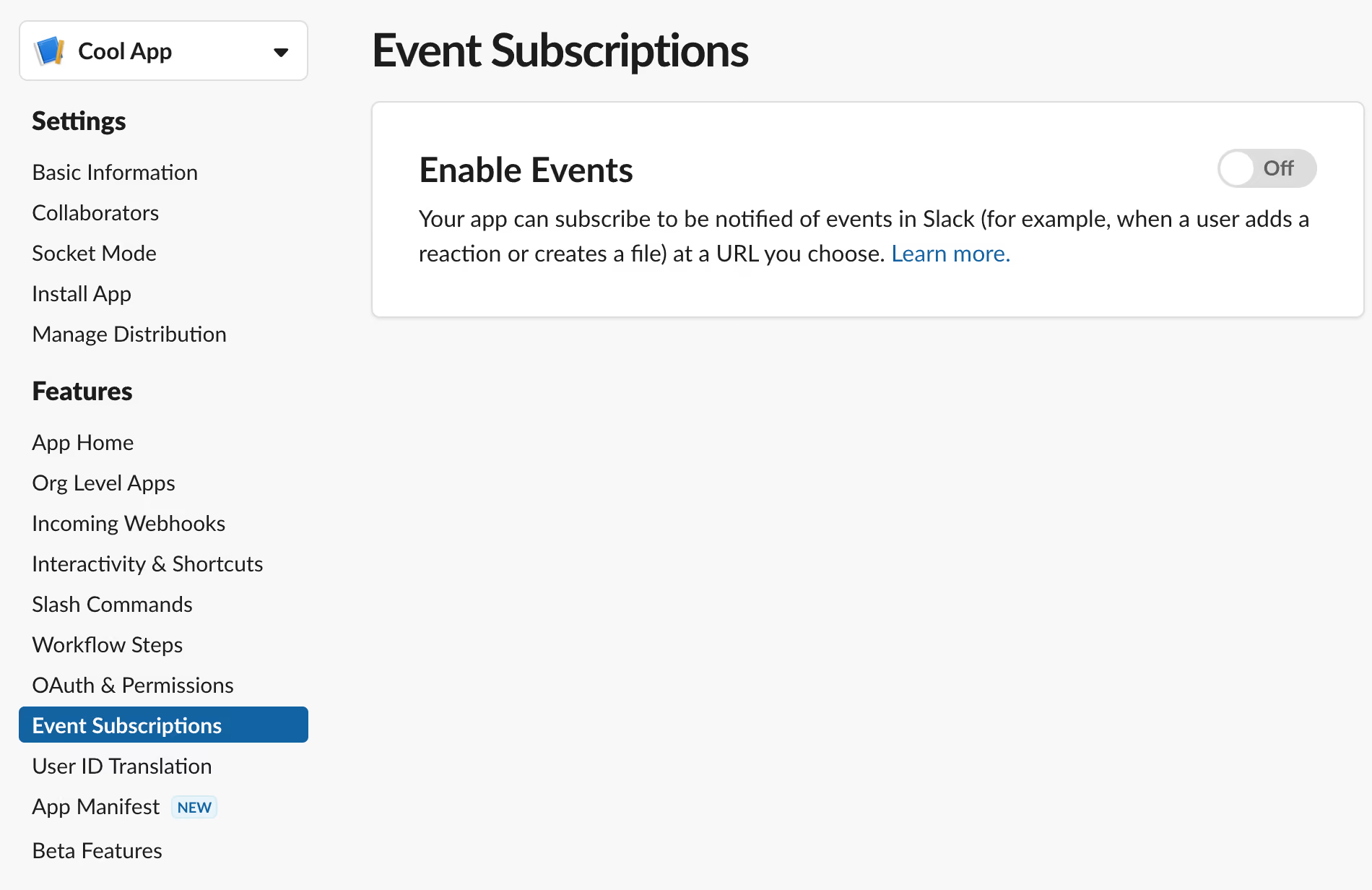
Run the updated version of the app which includes the event handler and then navigate to Features → Event Subscriptions:
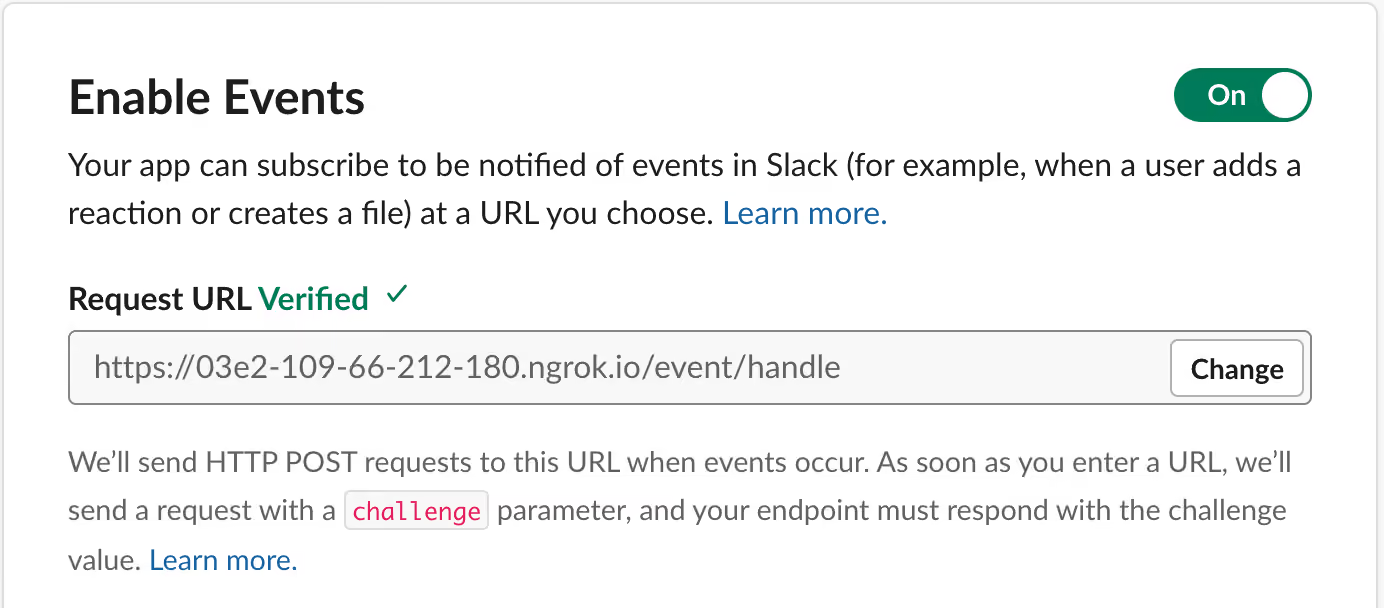
Enable events and under the ‘Request URL’ section, enter your ngrok URL suffixed with ‘/event/handle’ (e.g. ‘https://03e2-109-66-212-180.ngrok.io/event/handle’) and wait for the Slack platform to verify your events URL:
Then, under the ‘Subscribe to bot events’ section, add the ‘app_uninstalled’ event.
Deleting Our App
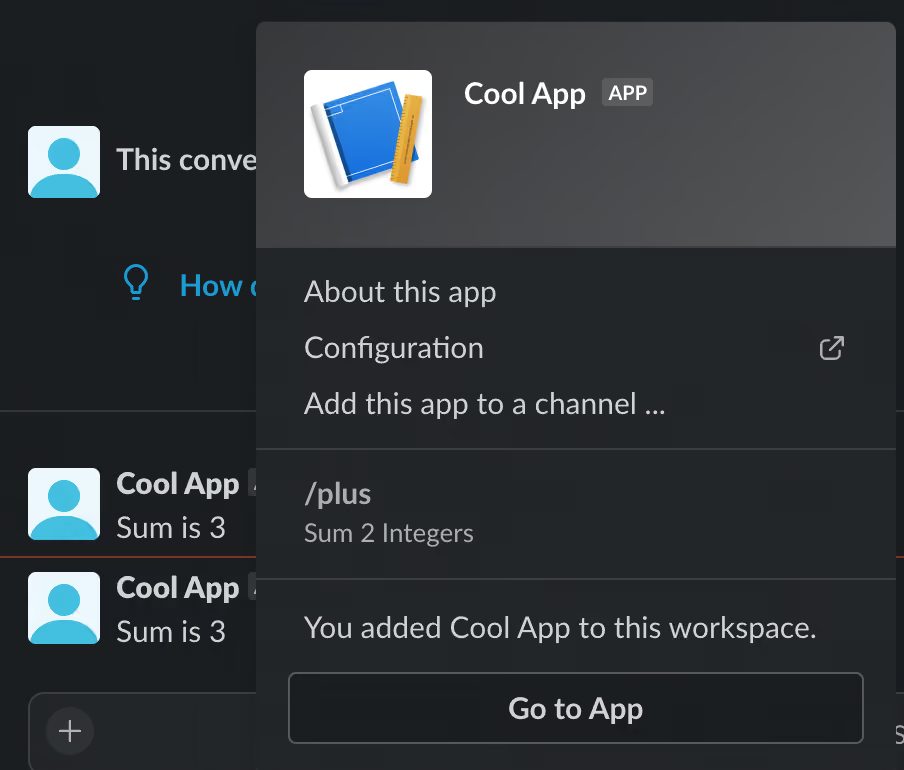
From the direct message channel your app opened with your user to inform you of the result of summing 2 integers, click on the app name:
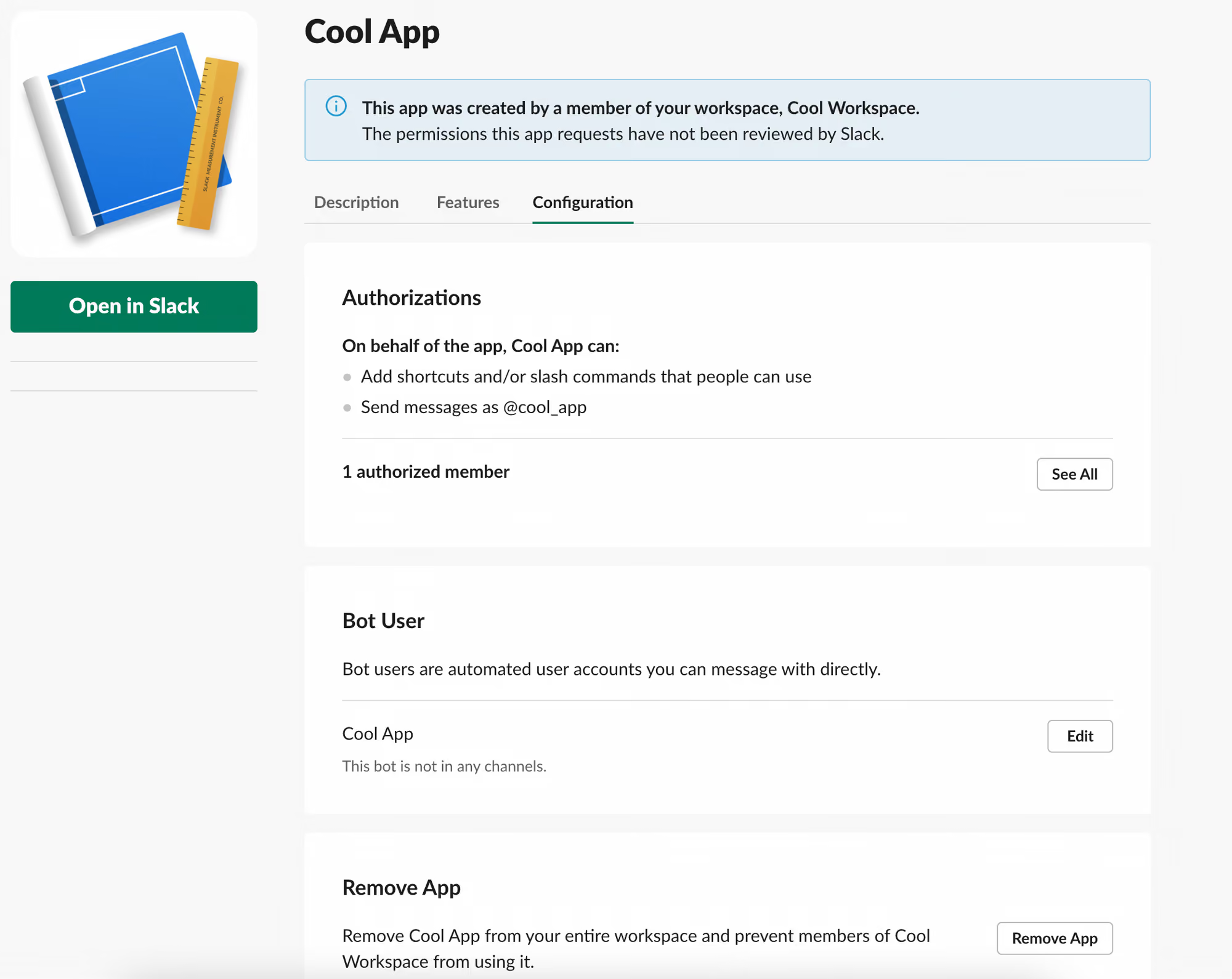
Press ‘Configuration’, which should open a browser window with the details of the app installation on your workspace:
And press the ‘Remove App’ button under the section with the same name.
Open your workspace from your Slack client. You should notice that the direct message channel with your app is not there anymore:
Also, you can see in the output of your Slack service, that a request was made to the events endpoint and that it was responded with a 200 OK status code:
.webp)
.webp)